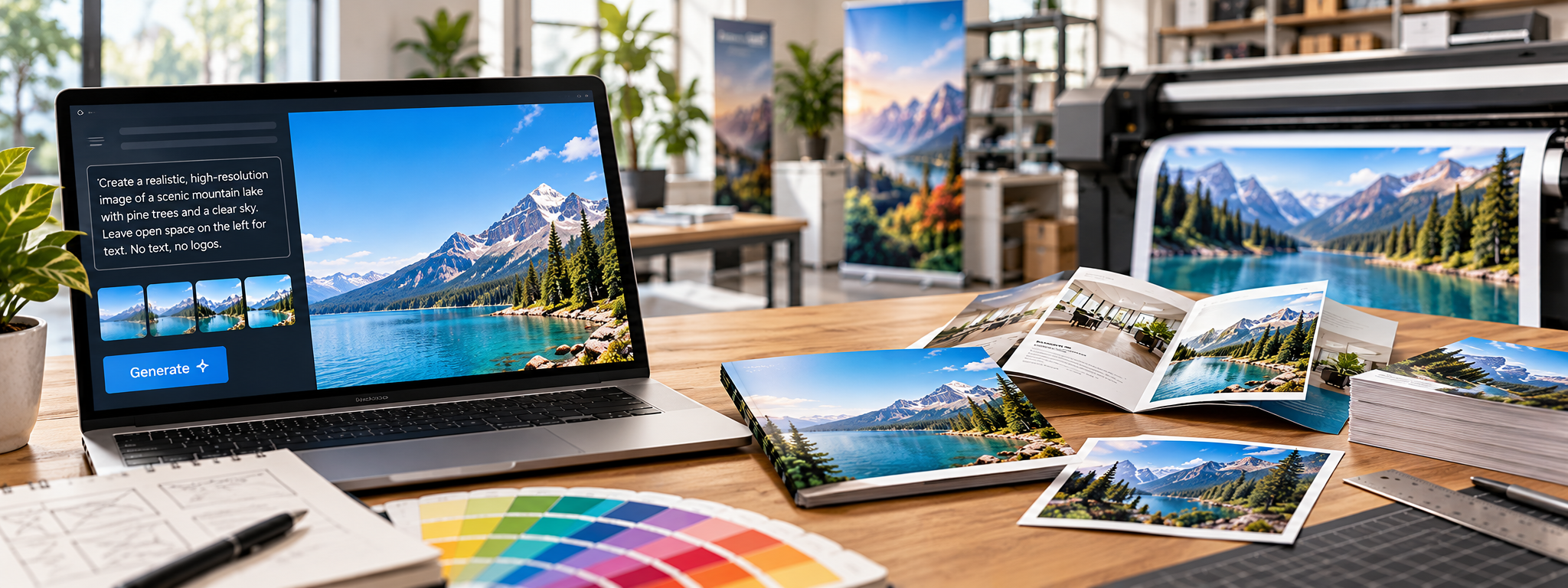
Knowing how to use AI prompts for print-ready files can help businesses create artwork that is easier to prepare for professional printing. AI image generators make it easier than ever to create artwork for marketing materials. From brochures and postcards to banners and signs, businesses can now turn creative ideas into visuals in just a few minutes.
However, creating attractive artwork does not necessarily mean it is ready for professional printing.
Using AI prompts for print-ready files can help you generate better source images, improve composition, and reduce design revisions. But AI tools cannot guarantee correct resolution, bleed, color settings, or production specifications.
Understanding what to ask for and what to check afterward can help you avoid costly printing mistakes.
Why AI Prompts for Print-Ready Files Matter
The quality of AI-generated artwork often depends on the instructions you provide. Well-written AI prompts for print-ready files can reduce unnecessary revisions by establishing the intended format, composition, and visual style from the beginning.
A vague prompt such as “create a professional business image” leaves too much room for interpretation. The result might look appealing on a screen but lack the proper composition, image quality, or space needed for printed marketing materials.
A more detailed prompt helps the AI understand how the artwork will be used.
Before generating an image, consider:
- Print format: Will the artwork appear on a postcard, brochure, banner, or sign?
- Orientation: Does the design need to be horizontal, vertical, or square?
- Visual style: Should the image look realistic, modern, minimalist, or editorial?
- Text placement: Where will the headline, logo, and contact information appear?
- Image details: Are there objects, backgrounds, or visual elements that should be excluded?
Planning these details before generating artwork can save time during the design process.
How to Write AI Prompts for Print-Ready Files
A good prompt should explain the purpose of the image and provide clear creative direction.
Use this simple formula:
Create a [visual style] image for a [printed material] in a [horizontal or vertical] composition. Feature [main subject] in [setting]. Use [lighting and brand colors]. Leave clear space in [specific area] for a headline and logo. Do not include text, letters, logos, watermarks, borders, or mockup frames. Generate at the highest available resolution.
This structure helps produce artwork that is easier to incorporate into a professional design.
Tip: Avoid asking AI to generate important text directly within the image. AI-generated lettering can contain spelling errors, distorted characters, and inconsistent formatting. Add headlines, logos, and contact details separately using design software.
AI Prompt Examples for Common Printing Projects
These AI prompts for print-ready files provide a practical starting point for creating artwork for different marketing materials.
1. AI Prompt for Postcards and Direct Mail
Postcards need attention-grabbing imagery and enough room for a clear marketing message.
Example prompt:
Create a realistic horizontal image for a 6-by-9-inch marketing postcard. Show a professional team collaborating in a bright, modern office. Use natural lighting and a welcoming atmosphere. Leave the left third of the image uncluttered for a headline and promotional message. Avoid text, logos, watermarks, borders, and postcard mockups. Generate at the highest available resolution.
This prompt helps create a visual that supports the message without competing with it.
2. AI Prompt for Brochure Covers
Brochure covers should introduce your business or service while leaving room for branding.
Example prompt:
Create a polished vertical image for a professional business brochure cover. Feature a realistic workplace environment with natural lighting and subtle brand-colored accents. Leave open space near the top for a headline and near the bottom for a company logo. Use clean composition and realistic photography. Do not include text, logos, watermarks, or brochure mockups. Generate at the highest available resolution.
The resulting artwork can serve as the background or main visual for a professionally designed brochure.
3. AI Prompt for Banners and Large Signs
Large-format printing requires strong visuals that remain easy to understand from a distance.
Example prompt:
Create a bold horizontal image for a large-format promotional banner. Feature one clear focal point, strong contrast, and a simple background. Leave generous negative space for a short headline. Avoid small details, complex patterns, text, logos, watermarks, borders, and banner mockups. Generate at the highest available resolution.
For banners, simplicity is often more effective than complicated imagery.
4. AI Prompt for Product Images
Product images should present the subject clearly without distracting backgrounds.
Example prompt:
Create a realistic product photograph of [product name] against a clean, evenly lit background. Show the entire product with accurate proportions, sharp edges, and natural lighting. Keep the composition centered and professional. Avoid text, logos, additional props, watermarks, and cropped portions. Generate at the highest available resolution.
This approach works well for product catalogs, flyers, brochures, and promotional materials.
What AI Prompts Cannot Guarantee for Printing
Even carefully written AI prompts for print-ready files cannot control every technical requirement.
Before submitting your artwork to a commercial printer, review these important factors.
Image Resolution and Print Size
An image that looks sharp on your computer may appear blurry when printed at a larger size. When using AI prompts for print-ready files, always verify the actual pixel dimensions instead of relying on resolution instructions alone.
For many small-format printed materials, 300 pixels per inch (PPI) at the final reproduction size is a common target. Large banners and signs may require different resolutions depending on their dimensions and viewing distance.
For example, a 6-by-9-inch image at 300 PPI would require approximately 1,800 by 2,700 pixels before accounting for bleed.
Simply asking AI for “300 DPI” does not guarantee the generated file contains enough pixels.
Always check the actual image dimensions before printing.
Bleed and Safe Margins
Bleed refers to artwork that extends beyond the final trim edge, helping prevent unwanted white borders after cutting.
Safe margins keep important information away from areas that may be trimmed.
AI image generators do not reliably establish these production settings. They should be added when preparing the final layout according to your printer’s specifications.
Color Accuracy
Most AI-generated images are designed for digital screens, which commonly display colors using RGB. Although AI prompts for print-ready files can describe specific colors, they cannot guarantee how those colors will reproduce on printed materials.
Commercial printing often uses CMYK or other color processes. Some bright colors visible on a screen may look different when reproduced on paper, vinyl, or other materials.
Color conversion, material selection, and proofing can all affect the final appearance.
Text, Logos, and Visual Accuracy
AI tools can introduce small mistakes that are easy to overlook.
Before printing, inspect:
- Misspelled or distorted lettering
- Incorrect product details
- Unnatural hands or facial features
- Inconsistent patterns and objects
- Distorted architecture or backgrounds
- Incorrect brand colors or logos
Always use approved logo files and verified marketing copy in the final design.
Vector Graphics and Editable Files
Most AI-generated images are raster files made from pixels.
They are not automatically editable vector graphics.
Logos, lettering, cut paths, and certain large-format graphics may require vector files to ensure accurate scaling and production.
If your project requires editable artwork, ask your printer which file formats are preferred.
How to Prepare AI-Generated Artwork for Professional Printing
Using AI prompts for print-ready files is only the first stage of preparing artwork for commercial production. Once you have selected your AI-generated image, the next step is preparing it for production.
Follow these steps before submitting your artwork.
Step 1: Check the original image. Review the file at full size for distortion, unwanted objects, and other visual problems.
Step 2: Confirm the required dimensions. Make sure the image contains enough pixels for its intended print size.
Step 3: Build the final layout. Place the artwork into a design program where you can accurately add text, logos, bleed, and margins.
Step 4: Review the colors. Discuss color requirements and proofing options with your printer.
Step 5: Export the correct file format. Follow your printer’s specifications for PDF, image, or editable design files.
Step 6: Request a prepress review. Have your printer check the artwork before production begins.
These steps help bridge the gap between AI-generated images and professionally printed materials.
Why You Should Talk to Your Printer Before Generating Artwork
Before finalizing AI prompts for print-ready files, ask your printer about the required dimensions, resolution, bleed, and preferred file formats. One of the easiest ways to prevent printing problems is to involve your printer early.
Before creating your final image, share the basic details of your project with Prestige Printing & Graphics.
These may include the finished dimensions, quantity, intended materials, printing method, and any special finishing requirements.
Our team can help identify the appropriate file specifications so you can create artwork with the final printed product in mind.
When submitting your project, provide the original AI-generated image at its highest available resolution, approved logos, final written copy, and editable design files when available.
Avoid repeatedly enlarging or resaving low-resolution images, as this does not restore missing detail.
Frequently Asked Questions About AI Prompts for Print-Ready Files
Can AI generate print-ready files?
AI can generate images suitable for use in printed materials, but the output is not automatically print-ready. The artwork may still need adjustments to resolution, dimensions, bleed, color settings, and file format before production.
What resolution should AI-generated artwork have for printing?
Many small-format print projects use 300 PPI at the final printed size as a common guideline. However, resolution requirements vary depending on the product, dimensions, and viewing distance. Confirm the appropriate specifications with your printer.
Can I use AI-generated images for commercial printing?
Many AI tools permit commercial use under their terms, but permissions vary by platform. Review the tool’s licensing conditions and check the artwork for potential trademark, copyright, or other rights issues before using it commercially.
Should I ask AI to include text in my artwork?
It is generally better to generate artwork without text. Add headlines, logos, phone numbers, and other important information separately in design software to maintain accuracy and readability.
What file format is best for printing AI artwork?
The best format depends on the project. High-quality image files may be suitable for source artwork, while a properly prepared PDF is often preferred for final print layouts. Your printer can confirm the required format.
Get Better Print Results With Prestige Printing & Graphics
Combining AI prompts for print-ready files with professional prepress guidance helps create a smoother path from digital artwork to finished printed materials. AI can be a valuable tool for developing creative concepts and generating artwork. With the right instructions, you can create visuals that are easier to incorporate into brochures, postcards, banners, signs, and other printed materials.
However, even the best AI prompts for print-ready files cannot replace proper production preparation.
At Prestige Printing & Graphics, we help businesses turn their ideas into professionally printed materials. Our team can review your artwork, identify potential file issues, and recommend the next steps before production.
Whether you are creating your first AI-generated design or preparing an entire marketing campaign, getting the specifications right from the beginning can save time and reduce unnecessary revisions.
Planning to print AI-generated artwork? Let Prestige Printing & Graphics review your files before they go to press.